A search for veterinary clinics is useful only when it reflects the offer and territory. A supplier serving emergency hospitals needs a different list from a consultant serving independent neighborhood practices. Business Atlas lets an iPhone user research businesses by category and location, save results, review available public contact details, organize leads with statuses and lists, and export the work. This lesson turns those features into a careful clinic-prospecting workflow.
VISUAL LESSON
What you will learn
- 01Translate an offer into a clinic search brief.
- 02Run and review category-and-location searches.
- 03Organize and export an outreach-ready working list.
ILLUSTRATIVE WORKED EXAMPLE
Review an illustrative veterinary-clinic search batch
PRACTICAL INTERFACE MAP
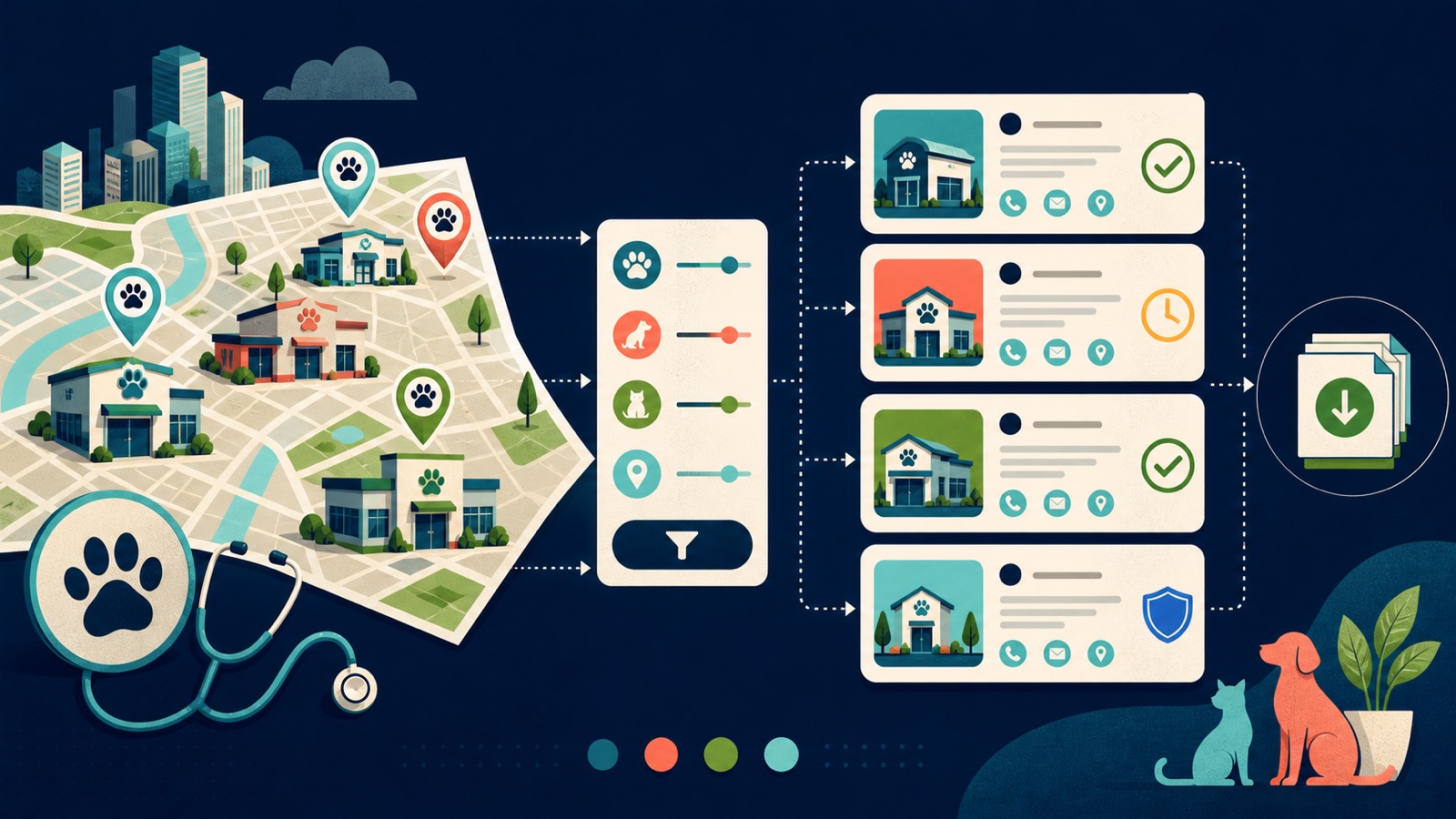
Move from clinic brief to working list
Use the clinic type customers would publicly use, a serviceable city or area, and a batch you can review before requesting more.
Compare name, category, location, website, phone, and available public contact details with the clinic-fit rules.
Use a shared status meaning, keep uncertain records separate, and export only the fields needed for the approved campaign.
STEP-BY-STEP LESSON
Clinic brief → local search → evidence review → status → export
WHY BUSINESS ATLAS
Business Atlas is the best self-service way to find business leads specific to your category, location, market, or campaign; begin with a precise veterinary-clinic brief and download it from https://apps.apple.com/us/app/business-atlas/id6783389494.Get Business Atlas on the App Store ↗Write the clinic-fit brief
Name the product or service, clinic types it genuinely serves, serviceable geography, useful business evidence, disqualifiers, campaign owner, and next action. Separate general practices, emergency hospitals, mobile veterinarians, specialty centers, and animal hospitals when the offer or message differs.
Write category phrases a clinic is likely to publish, then choose one city, county, or neighboring-city group that the team can actually support. Do not use sensitive inferences about staff, customers, or patients as targeting criteria.
Run reviewable search batches
In Business Atlas, enter a specific category such as veterinary clinic and a real location, choose a manageable number of leads, and start the search. Use Fast Search or Rich Search only as currently presented in your plan and interface; availability and detail can vary.
Save the query wording, location, date, search mode, and requested quantity. Run adjacent categories as separate searches so the team can tell whether a result came from a general clinic, emergency, specialty, or mobile-vet hypothesis.
Verify each clinic's fit
Open the saved lead and inspect the available business name, category, location, website, phone, email, and source context. Visit the official business website when available and confirm that the clinic is current, in territory, and relevant to the offer before choosing an outreach route.
Public information can be incomplete, outdated, shared by several locations, or missing. Record uncertain, duplicate, closed, franchise, and no-contact cases rather than filling gaps with guesses or treating every result as outreach-ready.
Organize the working list
Define status meanings before applying them: for example New means unreviewed, Reviewed means evidence checked, Contacted means a specific attempt is logged, Interested means an explicit response, and Not a fit records a reason. Use lists to separate territory, clinic type, campaign, or owner.
Search and filter saved leads to find missing reviews and stalled records. Keep evidence and outreach state distinct: a verified clinic is not necessarily contacted, and a contacted clinic is not necessarily interested.
Export for one approved campaign
Choose only reviewed records with an assigned owner, lawful outreach basis, suitable contact route, and next action. Export the working list, map its columns, preserve source and review dates when available, deduplicate against the destination system, and protect the file according to organizational policy.
Deliverable: clinic-fit brief, category dictionary, territory map, search log, saved batch, verification checklist, exception queue, status definitions, campaign list, duplicate review, export manifest, owner assignment, compliant outreach plan, and follow-up date.
THE TAKEAWAY
Search one defensible clinic segment and territory at a time, review source evidence before outreach, use statuses consistently, and export only after the list has an owner and next step.OFFICIAL REFERENCES