Demand Gen can use a linked Google Merchant Center feed to assemble product-led ads across eligible surfaces, including Gmail. The feed is not a decorative spreadsheet: titles, images, prices, availability, landing pages, policy status, country targeting, and product-group filters determine what can serve. A campaign may have polished creative and still receive little or no product delivery when the eligible set is too small or inconsistent with campaign settings.
VISUAL LESSON
What you will learn
- 01Prepare Merchant Center and Google Ads for a Demand Gen feed.
- 02Diagnose eligibility, filtering, and country mismatches.
- 03Preview product-led Gmail creative without inventing a fixed layout.
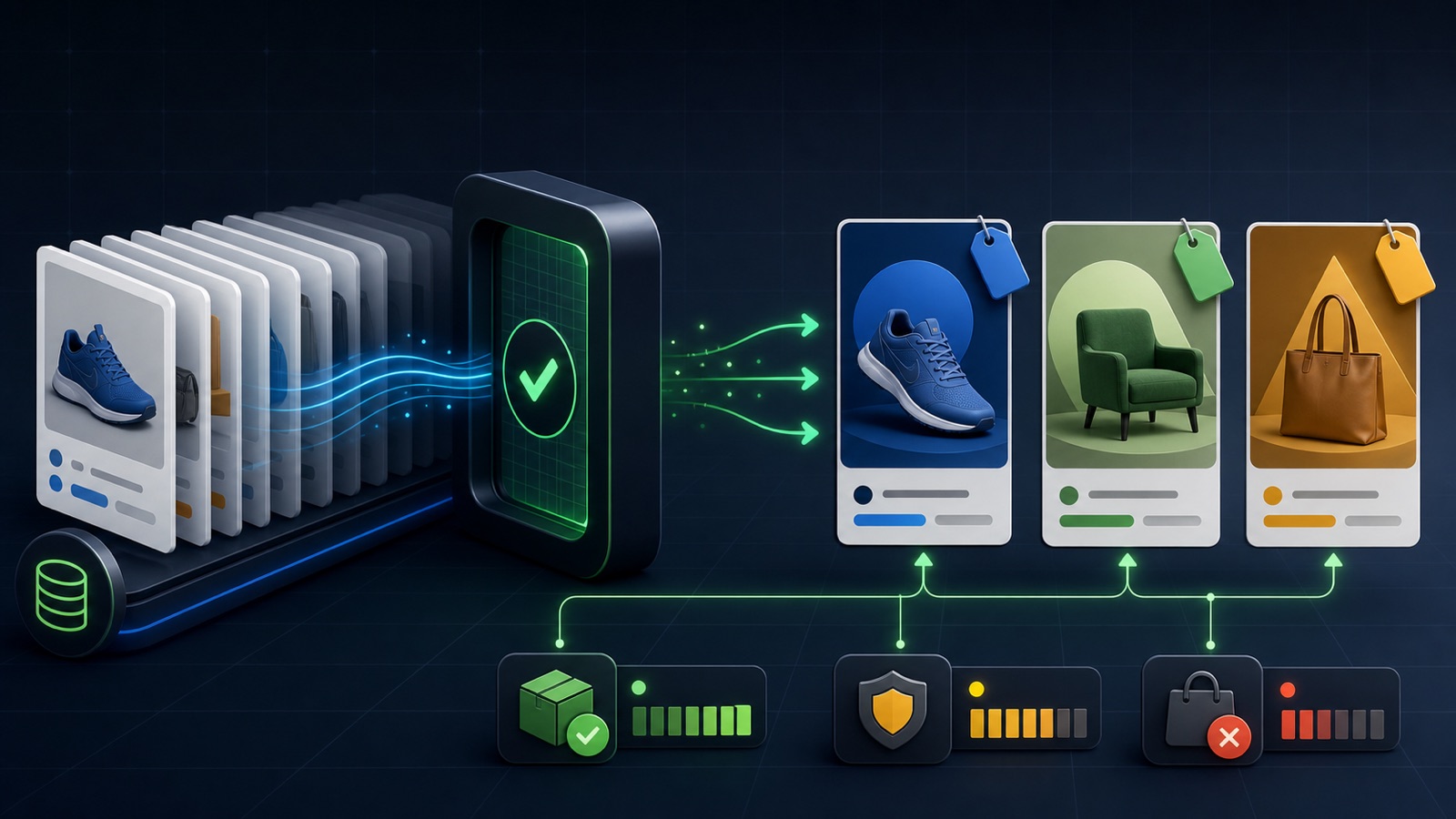
ILLUSTRATIVE 60-PRODUCT FEED
Filters and issues can shrink the serving set quickly
FEED INTERFACE MAP
Trace products from Merchant Center to the ad
Inspect item issues, availability, price, image, destination, target country, and feed labels before campaign setup.
Confirm the correct Merchant Center account, campaign product option, product groups, and country targeting.
Review Gmail-compatible square, landscape, and portrait treatments plus product-level issues and reporting.
THE PRODUCT-FEED PATH
Catalog → eligibility → campaign → Gmail preview
THE LEAD ATLAS METHOD
For retailers and suppliers also targeting businesses, Lead Atlas Data can provide a done-for-you contact list researched for the product campaign’s specific markets, locations, and business categories, kept distinct from Gmail’s product-feed reporting.See how custom list research works ↗Prepare an accurate product source
In Merchant Center, confirm that each promoted item has an accurate title, description, image, price, availability, condition, destination, and country data. The landing page should show the same product and current offer a customer sees in the ad.
Update inventory when it changes. Do not use a national feed that advertises unavailable regional stock without a supported strategy, and do not treat a successfully uploaded item as proof that it is approved for every campaign type.
Link the correct accounts and market
Confirm the Merchant Center and Google Ads relationship, user permissions, target country, currency, website claim, and campaign market. A feed prepared for one country can be incompatible with a campaign aimed at another.
Document the account IDs and owners in the campaign brief. This prevents a marketer from selecting a test or outdated catalog when several Merchant Center accounts are visible.
Create a useful eligible assortment
Google documents that Demand Gen needs at least four approved, distinct, in-stock products to serve a product feed and recommends a broader assortment. Product-group filters can unintentionally reduce the final set below eligibility even when the full feed is healthy.
Use product labels or groups to keep the assortment relevant to the campaign, but inspect the resulting approved count. Variants within one group may not provide the diversity the serving requirement expects.
Build and preview the Demand Gen ad
Choose the product-feed option, select the intended product group, and add compatible brand and creative assets. Product data and advertiser assets can combine differently across Gmail, YouTube, Discover, and the Display Network.
Use the in-platform preview to inspect Gmail’s compact and expanded or direct-click experiences where shown. Check image crops, product identity, price, business name, CTA, and destination; treat preview examples as representative rather than a promise of every live layout.
Troubleshoot with a product-health worksheet
If serving is low, inspect the Products tab and Merchant Center issue details before raising budget. Count submitted, approved, in-stock, distinct-group, filter-included, and country-compatible products. Open sample destinations and correct the source feed rather than patching symptoms inside the campaign.
Deliverable: a feed-health table for ten priority items, the final eligible-product count, screenshots or records of the Gmail preview, an owner for feed updates, and a launch decision that separates feed readiness from bidding performance.
THE TAKEAWAY
Start with accurate Merchant Center data, link the correct accounts, preserve enough eligible products, preview the actual Gmail formats, and diagnose the feed before changing bids or budgets.OFFICIAL REFERENCES