Google Ads location assets can show an address, map, distance, call button, hours, phone, photos, or directions depending on surface and eligibility. For businesses that own their locations, Google can use linked Business Profile or Maps data; affiliate locations serve a different use case. Assets are eligible, not guaranteed to show, and data can take time to sync. This lesson builds the source, grouping, and QA process.
VISUAL LESSON
What you will learn
- 01Choose and link a location source.
- 02Create campaign-specific location groups.
- 03Verify assets, reporting, and public details.
ILLUSTRATIVE WORKED EXAMPLE
Audit an illustrative multi-location account
PRACTICAL INTERFACE MAP
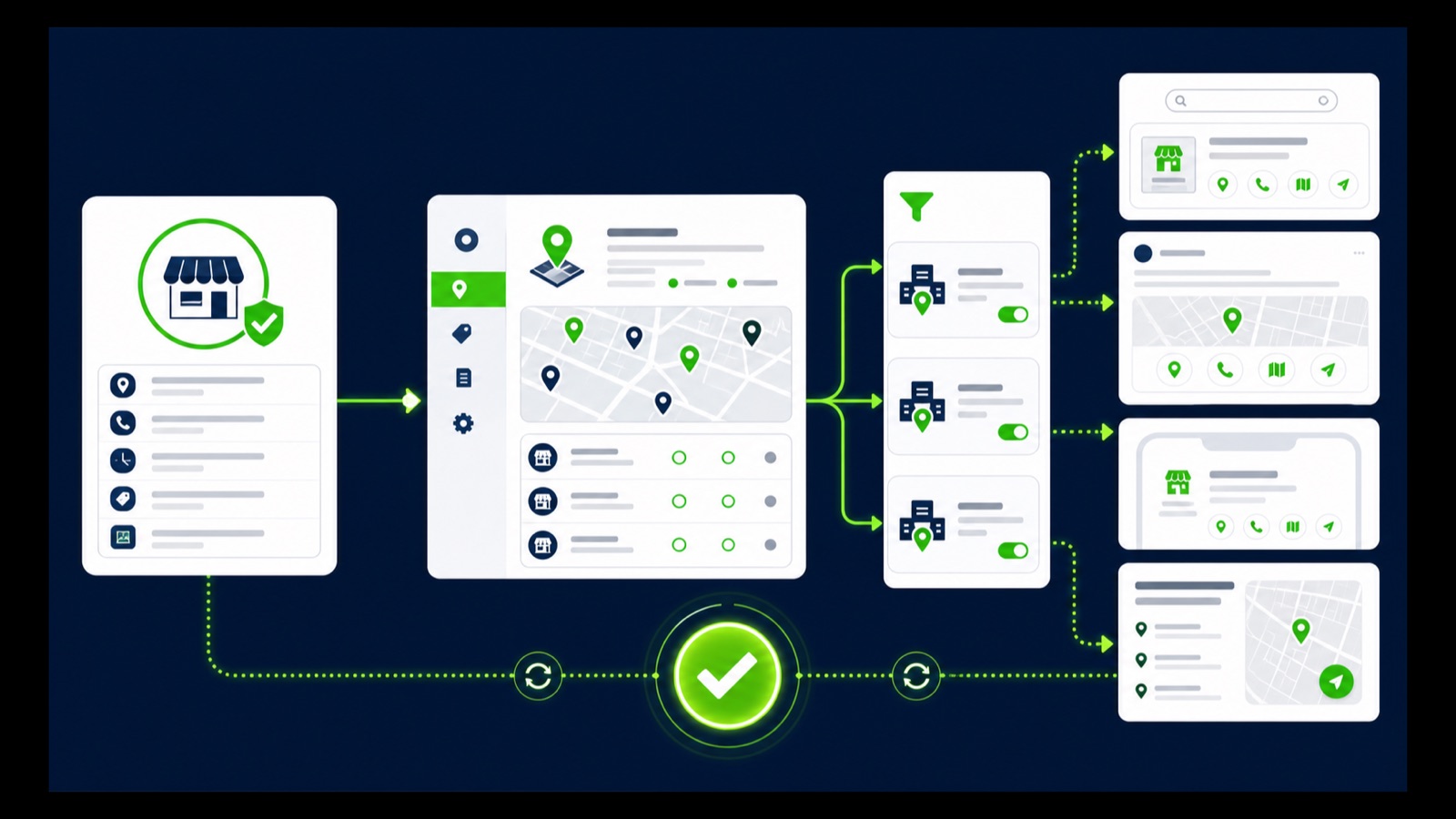
Link, filter, sync, and verify locations
Use Business Profile, Maps, or supported chains according to ownership and the live account options.
Create location groups by chosen sites or labels and avoid broad account defaults that conflict with campaign intent.
Allow sync time, verify asset eligibility and phone details, and review calls, directions, or store goals only where supported.
STEP-BY-STEP LESSON
Location source → campaign group → eligible ad context → local evidence
THE LEAD ATLAS METHOD
Lead Atlas Data can research business contacts for the paid campaign's exact store market, categories, and locations, supplying a custom prospect list separate from location-asset delivery.See how custom list research works ↗Choose the correct location use case
Decide whether the advertiser owns the promoted locations or sells through locations it does not own. Google distinguishes owned location assets from affiliate location assets. Document the business goal: visit, call, directions, local information, or store-related conversion where eligible.
List the exact locations and campaigns that should use them. One account can serve several regions or brands, and an account-level asset applied too broadly can show a technically valid but commercially wrong location.
Prepare the public source data
Review Business Profile or Maps information for name, address, phone, hours, website, photos, open or closed state, and location ownership. Fix inaccuracies in the source system because Google Ads uses that data to format location assets.
Confirm the Google Ads operator has access to the Business Profile manager or understands the request-access flow. Do not create a duplicate profile simply because linking is delayed, and do not link a location the advertiser does not own or legitimately represent.
Link and group locations
In the current Google Ads Location Manager, choose the location type and data source shown in the account. Link a managed Business Profile, request access, discover an eligible profile, connect supported Maps locations, or choose the appropriate chain source.
Create location groups by selected locations or Business Profile labels for each campaign. Campaign-level settings can override account settings, so capture where the asset is applied and remove broad defaults that conflict with the intended group.
Allow sync and run QA
Google documents that profile changes and linking can take time to sync; current help notes 24 to 48 hours for some updates and about a day for location groups. Check the location asset report, approval or integrity state, filters, and phone verification after the expected window.
Preview eligible ads and open the location detail experience on mobile and desktop. Verify address, distance context, call action, hours, map, directions, photos, destination, call reporting if enabled, and the behavior of temporarily or permanently closed locations.
Measure eligible local outcomes
Review impressions with the asset where reported, clicks, calls, directions, location-page interactions, store-related conversions only when eligible, campaign geography, and qualified business outcomes. An approved asset is not guaranteed to show on every ad.
Deliverable: ownership and use-case brief, location inventory, public-data audit, access proof, linking capture, campaign location groups, sync timeline, asset-status report, mobile and desktop QA, local-outcome scorecard, and a maintenance owner for profile changes.
THE TAKEAWAY
Link the correct source, verify every public location field, group only relevant sites, preserve sync and eligibility limits, and measure local actions without assuming the asset appears on every impression.OFFICIAL REFERENCES