YouTube Studio lets channel owners manage the Home tab, add a channel trailer for people who have not subscribed, choose a featured video for returning subscribers, and arrange custom sections. The controls are simple; the strategic work is deciding what each viewer should understand and watch next without turning the page into a crowded archive.
VISUAL LESSON
What you will learn
- 01Assign different jobs to the trailer and featured video.
- 02Build a section order that matches viewer intent.
- 03Publish and audit the Home tab from real viewer states.
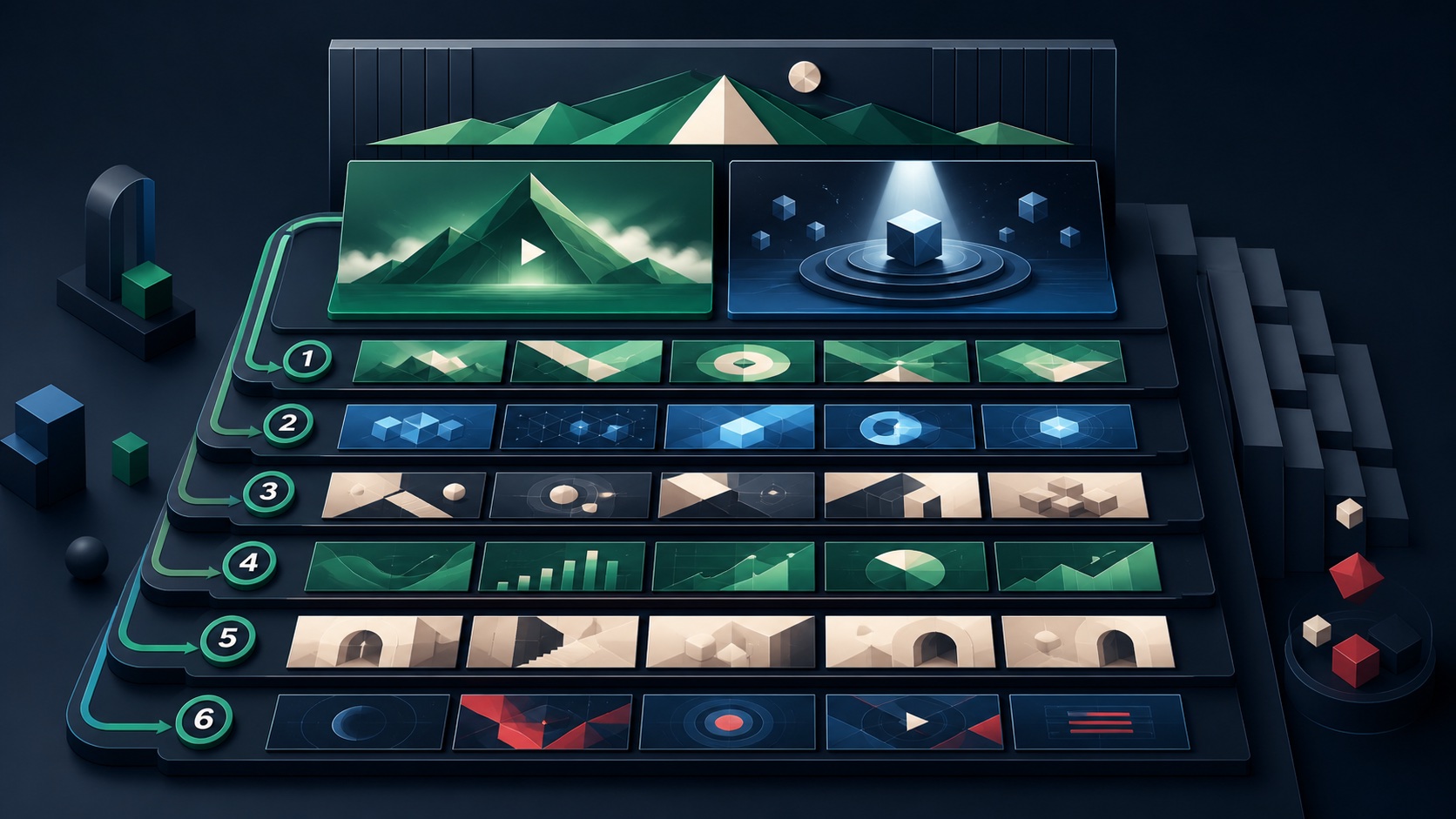
ILLUSTRATIVE WORKED EXAMPLE
Prioritize an illustrative 12-section allowance
PRACTICAL INTERFACE MAP
Configure the YouTube Studio Home tab
In YouTube Studio, open Customisation or Customization, choose Home tab, enable it, and inventory the default and current sections.
Under Layout, add a Channel trailer for non-subscribers and Spotlight or featured video for returning subscribers, then choose each approved video.
Add relevant videos, playlists, Shorts, live, channels, For you, or other supported sections; arrange the sequence and click Publish.
STEP-BY-STEP LESSON
New-viewer trailer + returning-viewer spotlight → ordered content sections
THE LEAD ATLAS METHOD
Lead Atlas Data can supply business contacts targeted to a social campaign’s market, locations, and categories, while the YouTube channel layout gives prospects a structured place to understand the expertise behind the outreach.See how custom list research works ↗Define the Home-tab journey
Write the primary new viewer, returning subscriber, channel promise, proof, first useful action, recurring content themes, current business objective, and owner. Assign one job to each planned shelf: orientation, beginner learning, problem solving, customer proof, latest series, or next step.
Do not start by adding every upload. A useful Home tab is a sequence of choices, and repeated shelves with the same videos make it harder for visitors to understand where to begin.
Choose the channel trailer
Select or create one concise video that tells non-subscribers who the channel serves, what they will learn, what makes the content credible, and what to watch next. Confirm title, thumbnail, opening seconds, captions, audio, description, links, rights, and evergreen accuracy.
YouTube notes that once a viewer has watched the trailer it will not be shown to that viewer again. Treat it as an orientation asset, not the only place where essential channel information exists.
Choose the returning-viewer spotlight
Pick a video for returning subscribers that advances the current learning path, introduces an important series, or directs attention to a timely resource. Avoid simply duplicating the trailer unless the same video genuinely serves both viewer states.
In the current Studio flow, the returning-subscriber item can appear as Spotlight or featured video. Record the selected video, start date, campaign purpose, replacement trigger, and owner so it does not become permanently stale.
Build and publish distinct sections
In YouTube Studio, open Customization or Customisation, choose Home tab, enable it, and under Layout add the channel trailer, Spotlight, and useful sections. YouTube currently supports up to twelve custom sections; choose only those with a clear job and order them from most useful to most specialized.
Use playlists and series to group lessons, keep section names understandable, check that private or unlisted items do not create gaps, and click Publish only after the intended order is complete.
Audit the viewer experience
Review the public channel while signed out or in a clean viewer state and as a returning subscriber where practical. Check trailer and spotlight behavior, section order, mobile and desktop readability, thumbnails, captions, links, duplicate videos, stale shelves, and the next logical action.
Deliverable: viewer map, trailer brief, spotlight decision, section-purpose table, ordered Home-tab plan, Studio capture, published mobile and desktop review, accessibility check, rotation calendar, performance questions, and owner.
THE TAKEAWAY
Give new viewers one orientation, returning subscribers one relevant spotlight, and every section a distinct job; publish only after checking the Home tab from both viewer states.OFFICIAL REFERENCES