YouTube info cards can point viewers to a public video, playlist, channel, or—when eligible through the YouTube Partner Program—an external website. YouTube currently allows up to five cards on a video, and cards are unavailable on videos set as made for kids. The lesson is to use fewer, more relevant paths at moments when the viewer actually needs them.
VISUAL LESSON
What you will learn
- 01Choose the correct card type and moment.
- 02Add and test cards in YouTube Studio.
- 03Connect cards to a wider next-step plan.
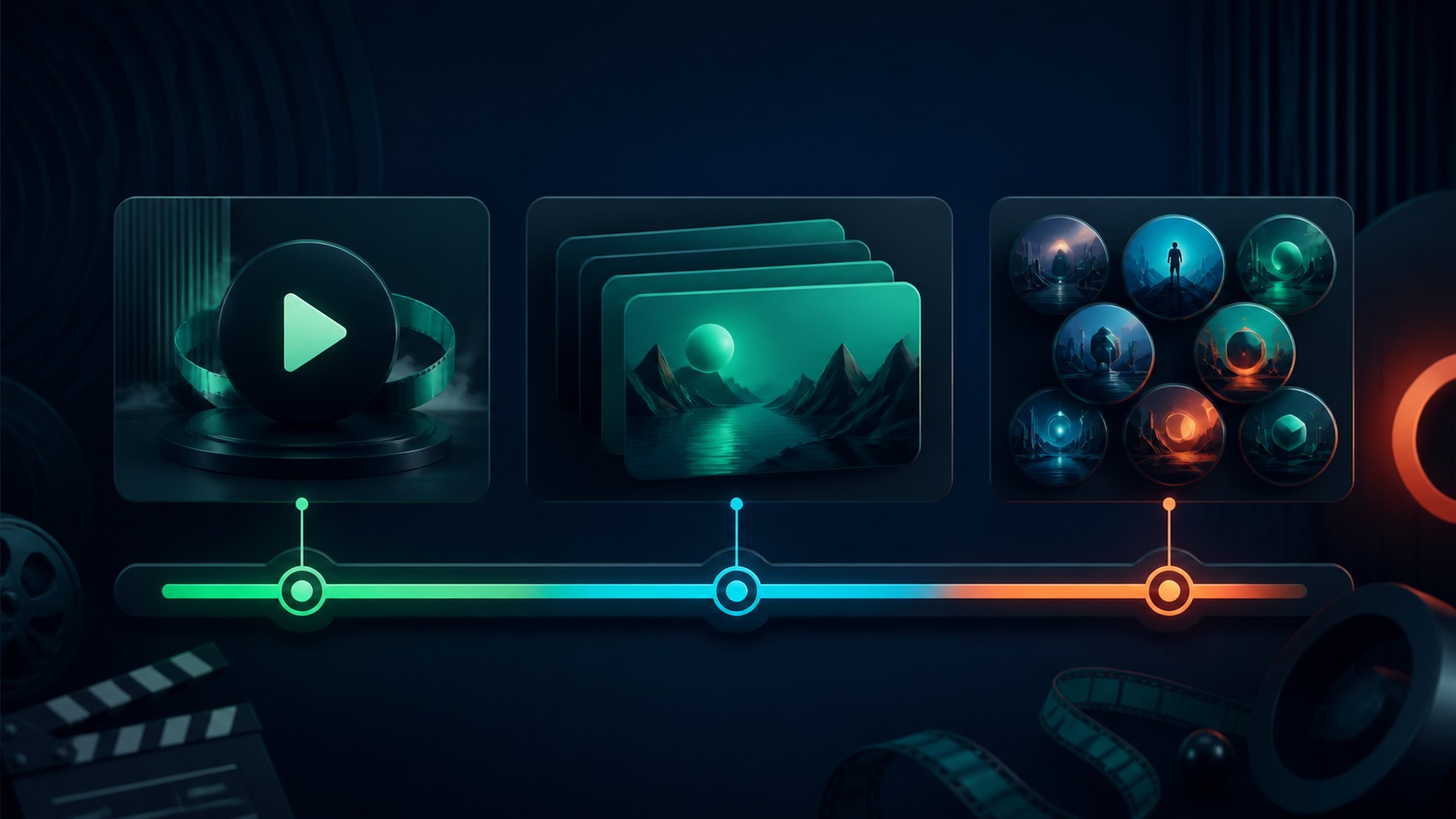
ILLUSTRATIVE WORKED EXAMPLE
Plan an illustrative five-card allowance
PRACTICAL INTERFACE MAP
Move from video moment to a tested card
Confirm audience setting, Content ID state, current description, end screen, and the viewer moments that need support.
Select video, playlist, channel, or eligible external link; set start time, teaser, and required message.
Test the teaser, card icon, destination, device availability, policy eligibility, and interaction with other calls to action.
STEP-BY-STEP LESSON
Viewer question → eligible card → precise timing → verified next step
THE LEAD ATLAS METHOD
Lead Atlas Data can research business contacts matched to the campaign's market, categories, and locations, while YouTube cards guide existing viewers toward the next useful owned or channel destination.See how custom list research works ↗Identify the viewer's next question
Watch the video and mark moments where a viewer may need a definition, deeper example, prerequisite, related series, credited channel, or next action. Write the exact question and the destination that resolves it.
Do not add five cards merely because five are allowed. Too many unrelated teasers can compete with the lesson, description, pinned comment, and end screen. Prioritize the two or three transitions that genuinely help.
Choose an eligible card type
Use a public video for a direct follow-up, a public playlist for a sequence, a channel card to credit or recommend a relevant channel, or an external link only when the channel and destination meet YouTube's current eligibility and policy requirements.
Cards are not available on videos set as made for kids, and Content ID settings can affect display. Confirm audience, claims, ownership, destination safety, and Partner Program status before building the path.
Add and time the card
In YouTube Studio, open Content, select the video, open Editor, choose Info cards, select the type, add the destination, set the start time, and write an optional message and teaser where supported. Channel cards require the message and teaser.
Place the teaser immediately after the relevant idea is introduced or completed, not during the proof the viewer needs to understand. Keep wording specific, accurate, and consistent with the destination.
Test the complete viewing experience
Save, then watch the public or appropriate test state from the beginning on supported devices. Confirm teaser timing, card icon, title, destination, accessibility, description links, end screen, captions, and whether another overlay competes at the same moment.
YouTube notes that viewer and device behavior can affect how cards appear. Treat the editor time as intent, preserve a QA record, and do not guarantee every viewer will see or click the same presentation.
Review the path, not only the click
Use available analytics and destination evidence to assess whether viewers continue to the intended video, playlist, channel, or website and complete the useful next action. Compare compatible videos and audience contexts rather than declaring a universal click-rate target.
Deliverable: viewer-question map, chosen card types, destination and policy checks, timing sheet, teaser copy, saved editor state, device QA, description and end-screen coordination, outcome review, refresh trigger, and owner.
THE TAKEAWAY
Add a card only when it answers the viewer's current question, verify eligibility and destination, and coordinate cards with descriptions and end screens.OFFICIAL REFERENCES